

You pair an app-controlled vibrator inside the toy’s own app, not through your phone’s Bluetooth settings menu. That’s the single most common mistake people make when a toy “won’t connect.” Most of these toys use Bluetooth Low Energy, which usually doesn’t show up correctly if you try to pair it the normal way your phone pairs with headphones or a speaker. Open the brand’s own app first. Everything else follows from there.
Before You Start: Get the Right App
Each brand runs its own app, and they aren’t interchangeable. Lovense toys pair with the Lovense Remote app. Satisfyer toys pair with Satisfyer Connect. We-Vibe toys pair with We-Connect, sometimes just called the We-Vibe app. Download the one that matches your toy’s brand before you do anything else. A toy from one brand won’t show up in another brand’s app, even though the setup process looks almost identical across all three.
How Bluetooth Pairing Actually Works
Turn on your toy first, usually by holding its power button for a few seconds until a light starts blinking. That blinking light means it’s in pairing mode and broadcasting a signal for the app to find, not connected to anything yet. Open your brand’s app, and it should list the toy within a few seconds. Tap it to connect.
If your phone’s system Bluetooth settings show the toy as an available device before you’ve opened the app, ignore it. Pairing it there first can actually cause conflicts that make the toy invisible to its own app afterward. Let the app handle the whole connection.
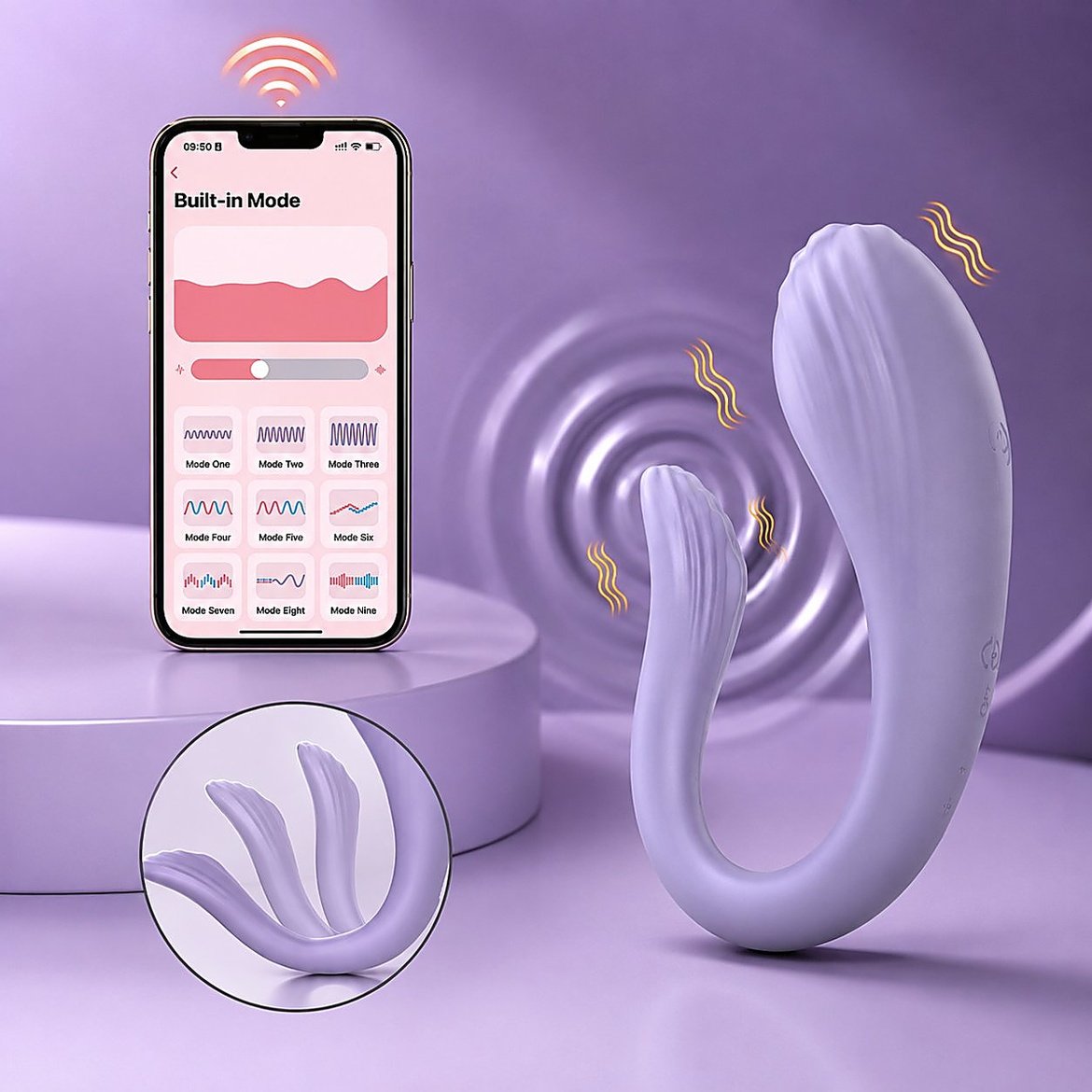
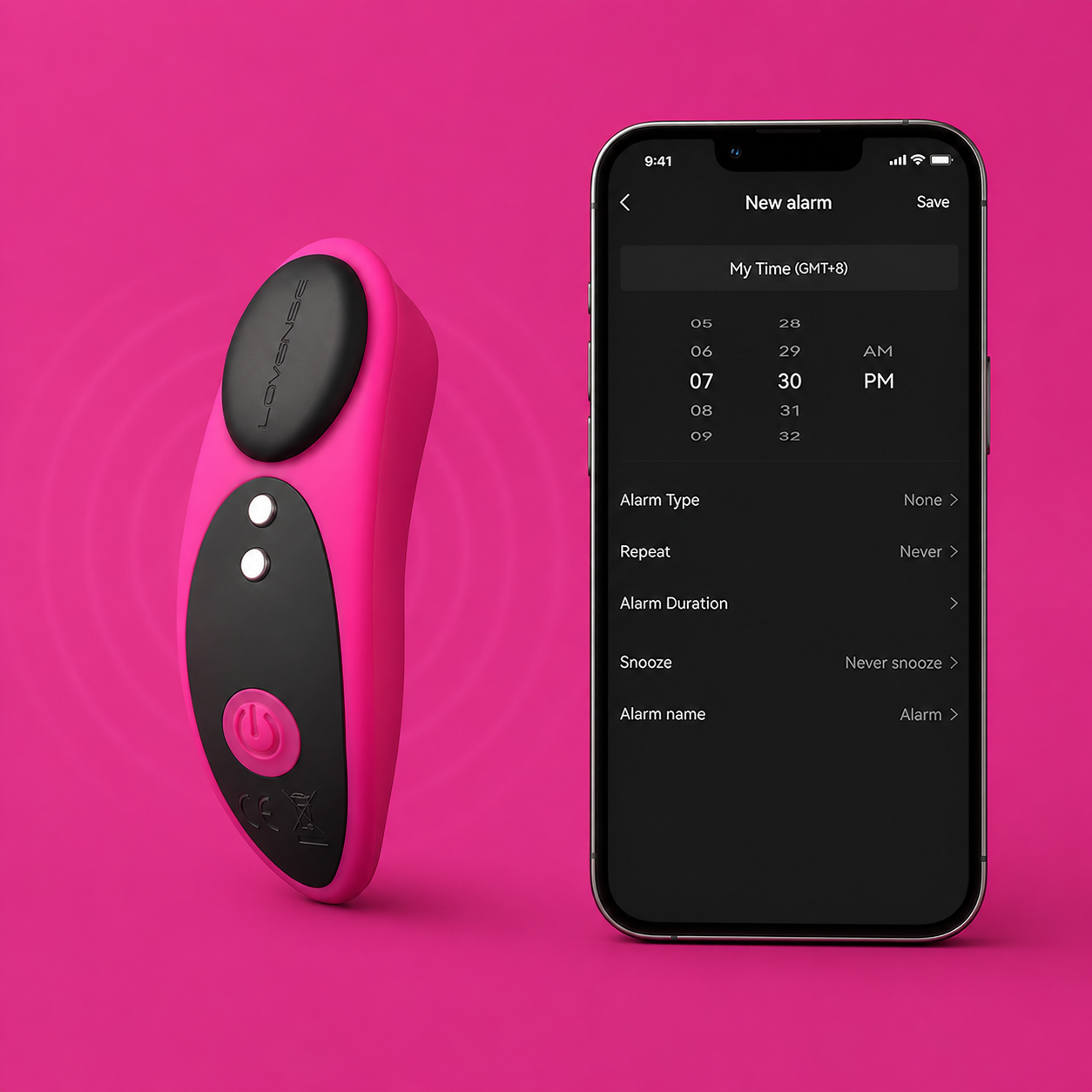
Lovense Setup Guide
The Lovense Remote app handles phone control. Put your toy in pairing mode, open the app, and select your device from the list it finds. Once connected, you get Live Control for real-time partner play, Sync Control if you own two toys and want them to move together, and a built-in voice and video call option so you can talk while you play.
For PC control, Lovense splits into two real scenarios depending on your computer. If you’re on a Mac, install the Lovense Connect app and it uses your Mac’s built-in Bluetooth, no extra hardware needed. If you’re on Windows, most laptops and desktops need Lovense’s own USB Bluetooth adapter first, since a lot of Windows machines either lack Bluetooth entirely or use a version the app doesn’t recognize reliably. Plug in the adapter, install Lovense Connect, and the app should locate your toy the same way the phone app does.
The desktop app is mainly built for streaming and interactive content, not everyday couple use, so if you just want your partner to control your toy from their phone, you don’t need the PC version at all. The phone app’s Control Link feature covers that on its own, letting you generate a link that hands control to whoever you send it to.
Satisfyer Connect Setup Guide
Download Satisfyer Connect, accept the permissions it asks for, and turn on Bluetooth if you haven’t already. Hold down your toy’s main button, usually for about four seconds, until the app finds it in the search screen. Tap the toy’s icon to confirm. You’ll feel a short pulse from the toy confirming the connection went through.
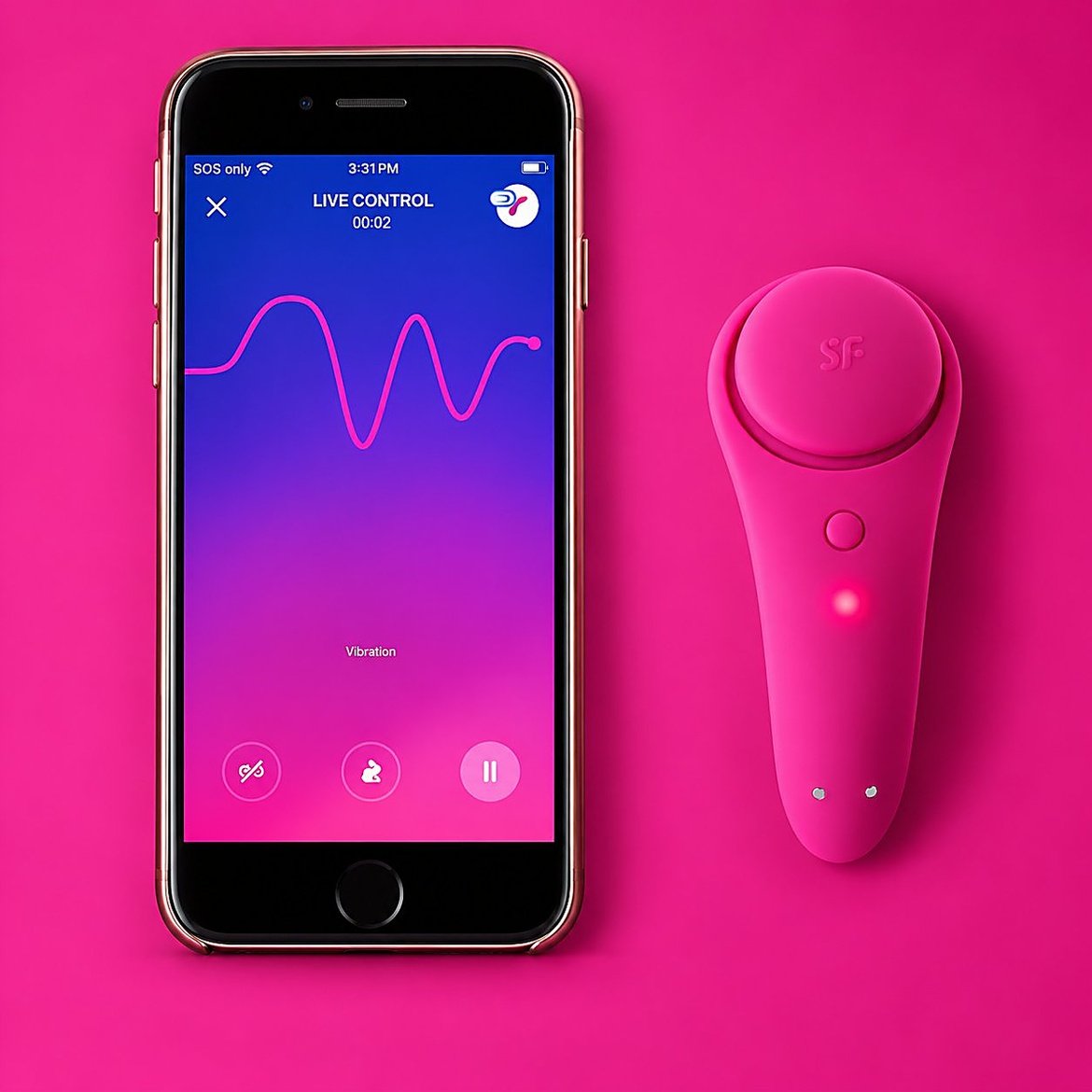
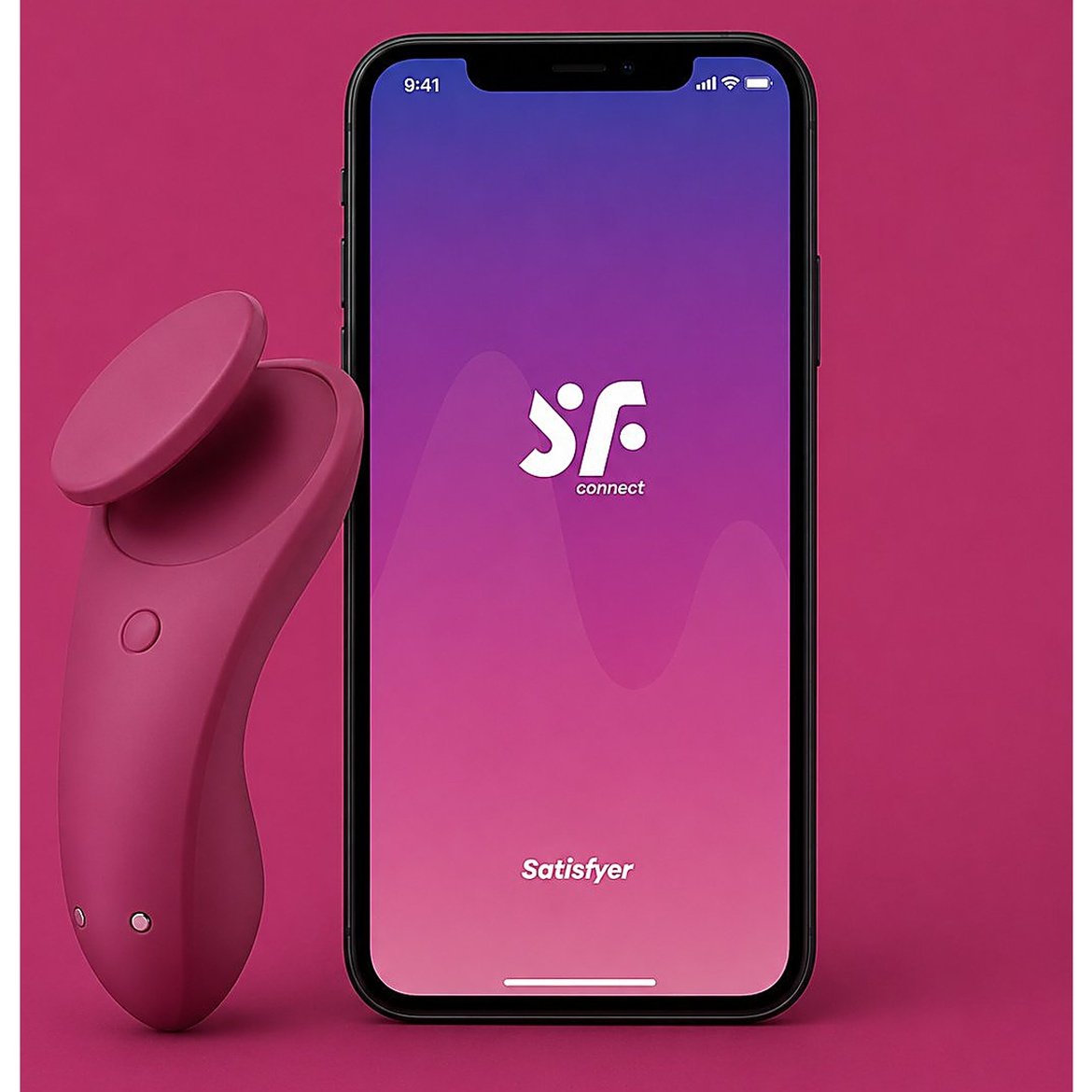
Satisfyer Connect supports pairing up to four toys to one account at once, which matters if you or a partner own more than one Satisfyer device. Partner control runs through the app’s built-in chat. Create an account, add your partner, and you can hand control back and forth from inside the same conversation instead of a separate menu.
We-Connect (We-Vibe) Setup Guide
We-Vibe’s setup starts differently from the other two. Open We-Connect and scan the barcode on your toy’s packaging instead of searching blind, which tells the app exactly which model it’s looking for. Press the toy’s button until it vibrates twice, then tap the matching prompt in the app. Three vibrations back means you’re connected.
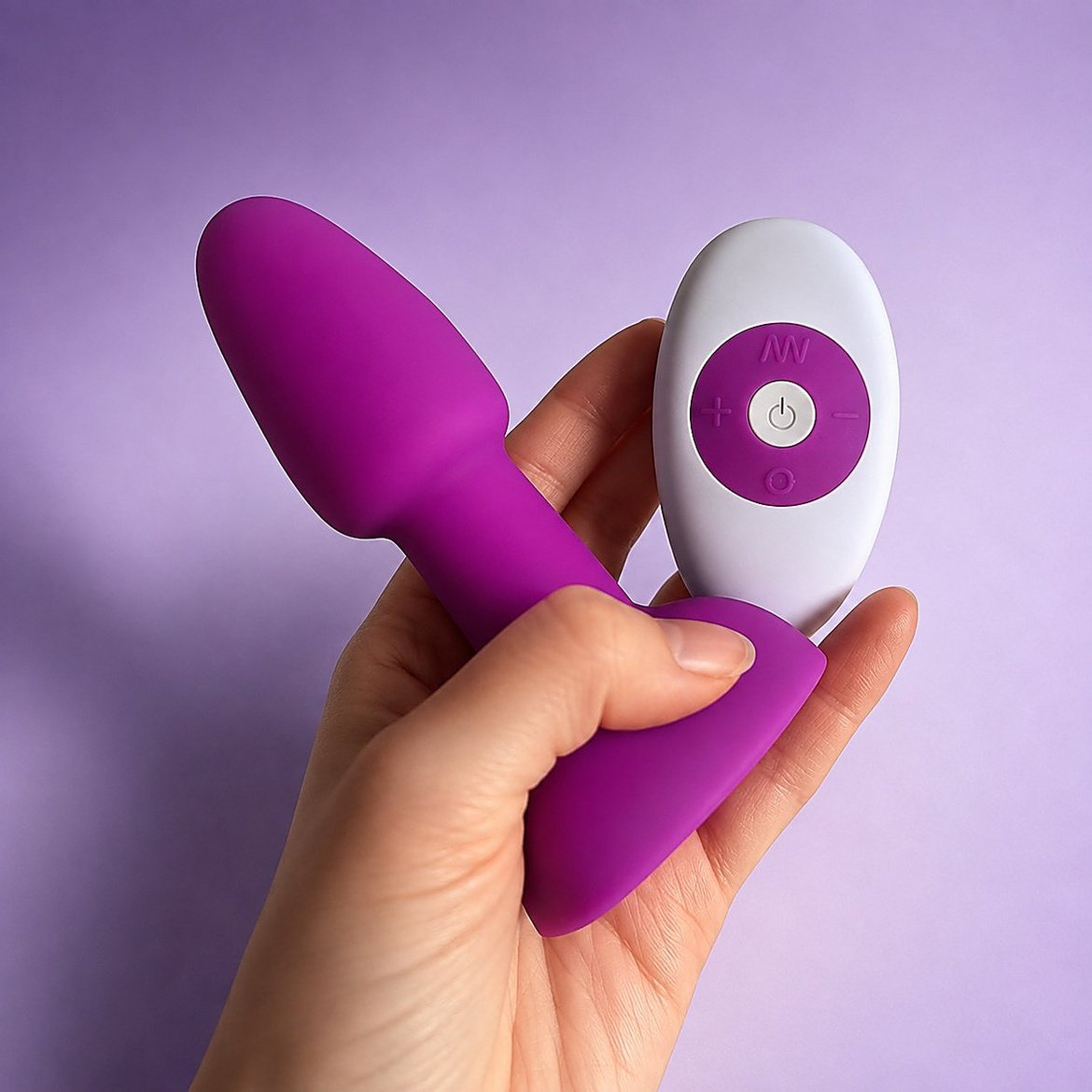
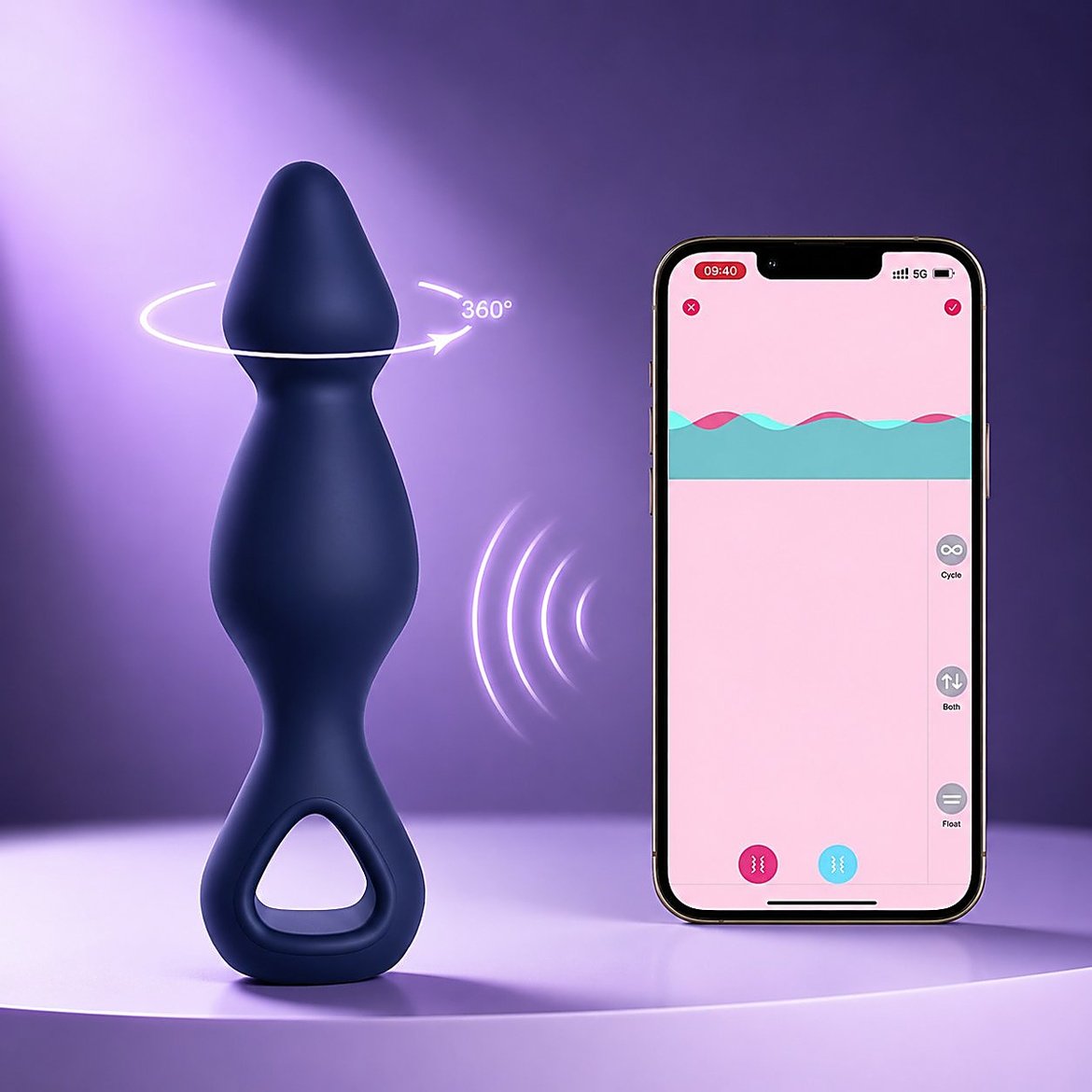
The app is split into two sections. TOYS is for controlling your own device directly. LONG DISTANCE PLAY is where partner control lives. Tap the plus icon there, enter your partner’s name, and send the invite. Once they accept it on their end, either of you can pick up control of the toy, and the section includes its own chat and video call tools so you’re not juggling a second app during a call.
Troubleshooting: Won’t Pair, Keeps Disconnecting, Range Problems
| Problema | Causa probable | Fijar |
|---|---|---|
| Toy won’t show up in the app | Already paired to another phone, or paired through phone Bluetooth settings first | Forget the device in your phone’s Bluetooth settings, close and reopen the app, put the toy back in pairing mode |
| Connects, then drops a few seconds later | Low battery, or interference from a WiFi router or microwave nearby | Charge the toy fully before testing, move away from other 2.4GHz devices |
| Works up close, drops at a distance | Normal Bluetooth range limit, roughly 30 feet, less through walls | Keep your phone in the same room as the toy, since range problems here are physical, not a bug |
| Partner can’t connect from another location | Phone’s WiFi or data connection is weak, not a Bluetooth issue | Check that both people have a working internet connection, since long-distance control depends on that, not Bluetooth |
| App says connected, but nothing happens when you use it | Outdated app or toy firmware | Update the app first, then check for a firmware update inside the app’s device settings |
How Partner Control Actually Gets Shared
All three apps solve this the same basic way, even though the button names differ. You generate some form of invite, a link, a username search, or a barcode-based pairing, and send it to your partner. They accept it in their own copy of the app. From that point, either of you can take control, and reconnecting after the first time is usually automatic as long as both phones have Bluetooth or data turned on.
If you haven’t bought a toy yet and are choosing between brands specifically to avoid this setup process being a hassle, it’s worth knowing that this same Bluetooth-then-WiFi structure runs under every app-controlled toy on the market, not just these three. WINYI’s own app-controlled toy lineup uses the identical logic, at a fraction of the price of the brands above. The Alan anillo de pene y el rideable vibrator both pair the same way described here, app first, then partner invite, and neither requires you to learn a second app for PC control.
If Setup Shouldn’t Be This Complicated
Three different apps for three different brands is exactly the kind of friction that makes people give up on long-distance toys before they even try one. If you’re comparing options and want the same app-based, long-distance-capable control without needing a Bluetooth adapter or a second desktop app, Request a Quote on any WINYI model, especially if you’re sourcing for a shop and want the setup experience to be simple for your own customers too.
Frequently Asked Questions
- Does any of this work without WiFi?
- Pairing your own toy to your own phone works over Bluetooth alone, no WiFi needed. Controlling a partner’s toy from a different location needs WiFi or mobile data on both ends, since that’s how the command actually travels between you. Bluetooth alone can’t cross that distance no matter how the app is set up.
- Why does my toy keep dropping Bluetooth even when I’m right next to it?
- This is almost always the phone’s system Bluetooth interfering, from pairing it manually before opening the app, or another Bluetooth device on the same phone competing for the connection. Forget the toy in your phone’s Bluetooth settings entirely and let the brand’s app manage the connection from scratch.
- Can I control a toy from my laptop instead of my phone?
- Yes, but only Lovense currently offers a real desktop option through Lovense Connect, and Windows users need the USB Bluetooth adapter for it to work reliably. Satisfyer and We-Vibe are built around phone control, without an official desktop app for general use. If PC control matters most to you, factor that into which brand or toy you buy in the first place.
- Do I need to make an account, or can I just connect the toy and go?
- You can pair and use a toy solo without an account on most of these apps. The moment you want a partner to control it remotely, all three require some form of account or profile, since that’s how the app knows whose invite goes to whom.